

WHITETRANSPARENT PNG
01
White or transparent.
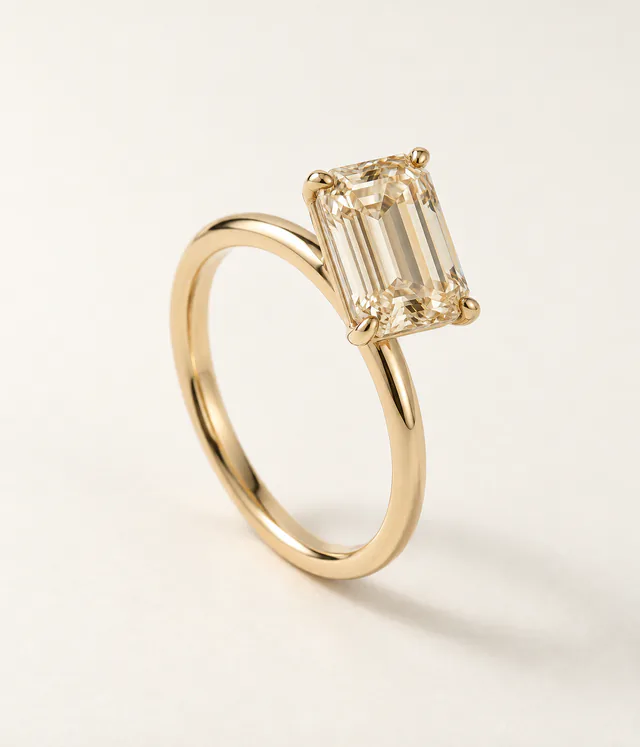
Create white-background product images or transparent cutouts for your store, marketplace listings, and catalog layouts.
CATALOG IMAGES · BATCH GENERATIONCreate white or transparent catalog images, on-model photos, and styled scenes for social. Start with one photo or work through a collection in batches.
 Studio concept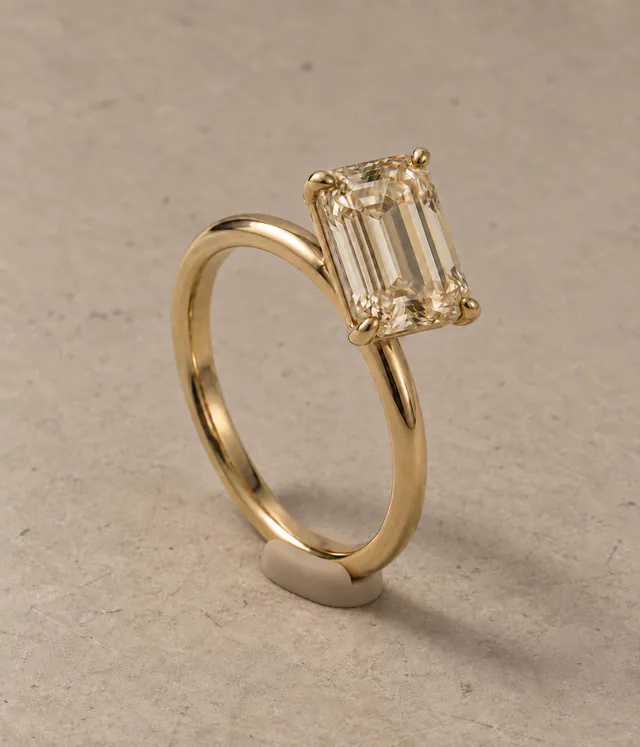
A product listing, a worn look, a mood for your feed. Choose the image style for the way you want to present your collection.
Create white-background product images or transparent cutouts for your store, marketplace listings, and catalog layouts.
CATALOG IMAGES · BATCH GENERATION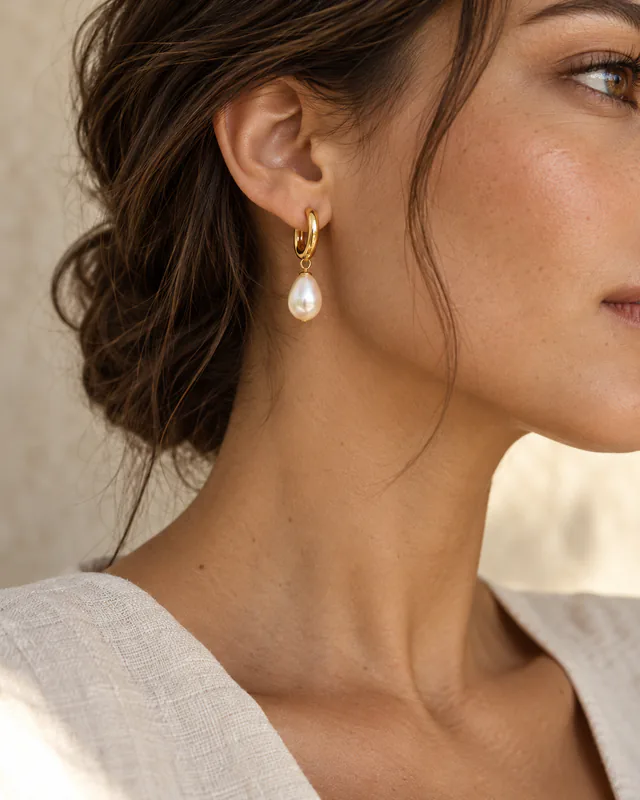 THE WORN LOOK
Explore on-model images that show jewelry in a worn setting, from rings on hands to earrings and necklaces.
ON-MODEL PHOTOS · BATCH GENERATION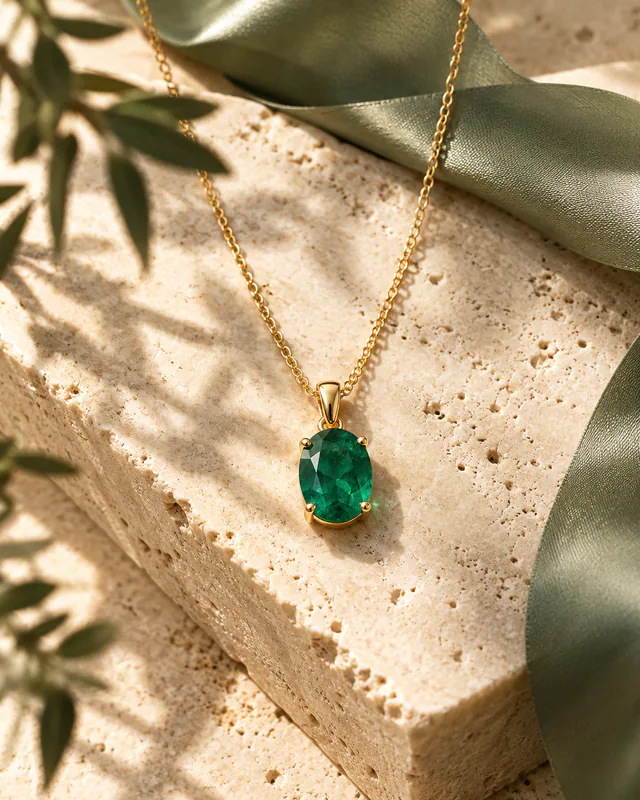 A DIFFERENT MOOD
Explore styled backgrounds, light, and atmosphere for Instagram posts, social campaigns, and collection launches.
SOCIAL SCENES · BATCH GENERATIONSee how the three styles change the presentation. Compare the jewelry with your original and choose the images that suit your collection.
Illustrative AI-created imagery for this design concept. These are not product test results; actual outputs will vary.
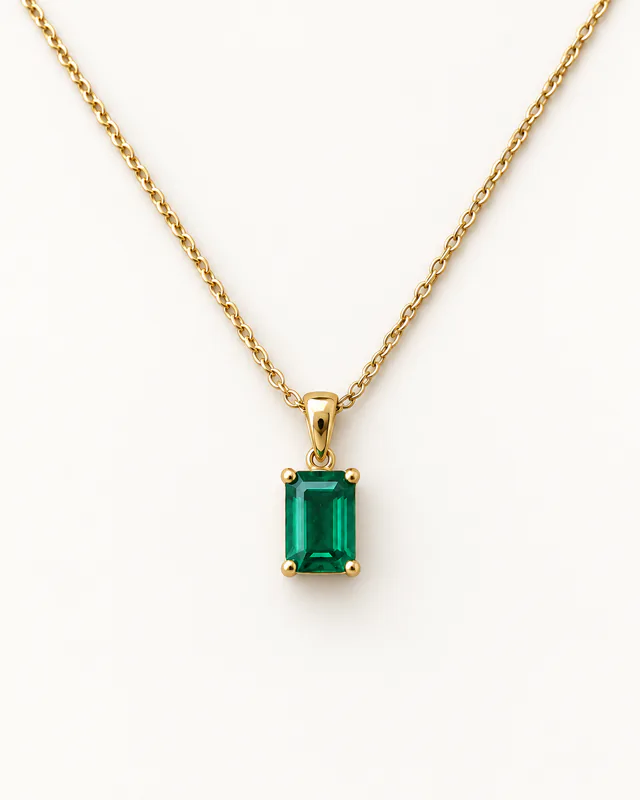
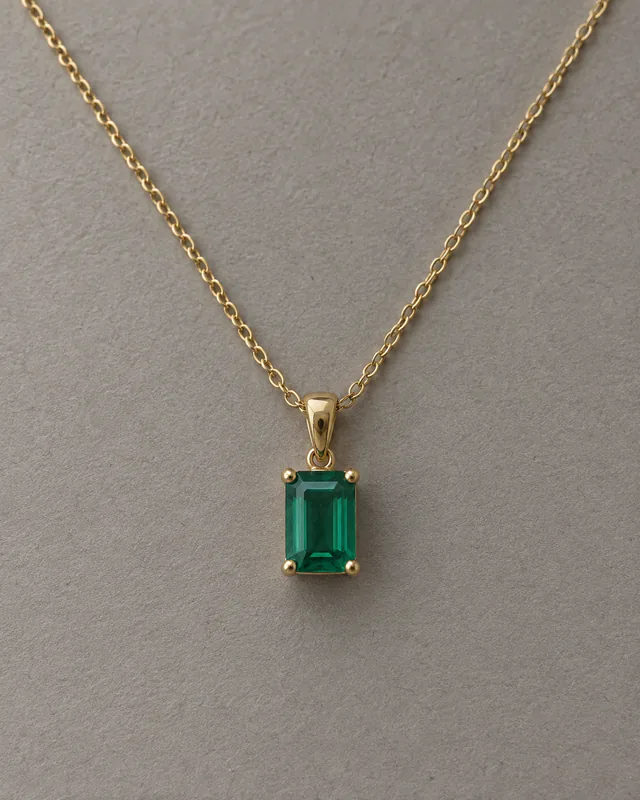
Use one workflow for catalog, on-model, and social images. Start with a representative photo, then bring in the rest of your collection.
Take a closer lookAdd one source photo or multiple photos for a batch. Clear lighting and visible jewelry details provide a useful starting point.
Select Catalog, On-model, or Social. Apply your chosen direction across the batch and start generating.
Compare each result with its source, inspect the jewelry, and select the images you want to download.
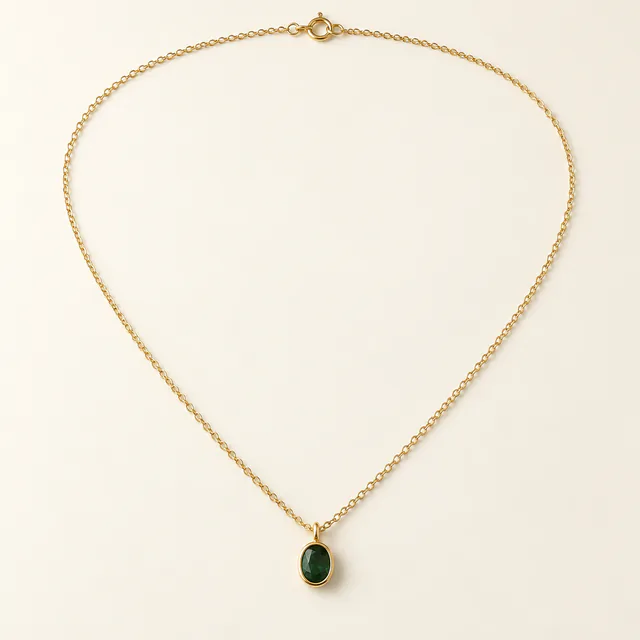
Choose catalog images, on-model photos, or social scenes for a group of source photos. Review the generated results individually and choose what works for your collection.
Choose an image style for multiple photos at once.
Review each result before selecting your downloads.
Explore a few directions with your registration allowance, then choose a result to unlock.
Your first look at what Lustrei can do.
3 preview generations
3 image unlocks
Each new image or retry uses a preview generation. Batch previews count per image.
One unlock releases one selected image. Available export sizes are included.
Download an unlocked image again without using another image unlock.
Registration allowances are granted once per account. Each new result uses a preview; each selected image uses one unlock.
Choose the right mode, start with a clear source, and review the images you create.
Lustrei offers three AI jewelry retouch modes: Catalog for white or transparent product images, On-model for worn jewelry looks, and Social for styled backgrounds and campaign imagery.
Yes. All three image styles support batch generation. Start with a representative photo to explore a direction, then apply that mode to multiple source photos. Review the results individually before using them.
Start with a sharp, well-lit photo where the jewelry is clearly visible. Suitable source photos depend on the selected mode. For on-model work, test a representative piece before committing a large collection to the same direction.
A preview generation creates a new candidate image; retries also use previews. An image unlock gives you access to a result you have selected. The two allowances are separate, and you can download an unlocked image again without another unlock.
Export sizes describe pixel dimensions. Larger exports may be upscaled from the selected result and do not add original jewelry detail. You will see the available sizes and generation quality before you choose an export.
AI-generated results can vary in color, shape, and fine details. Compare the stones, settings, proportions, and engravings with your source photo before choosing an image for a product listing or campaign.
Try a catalog image, a worn look, or a scene for social. Start with one piece and explore.